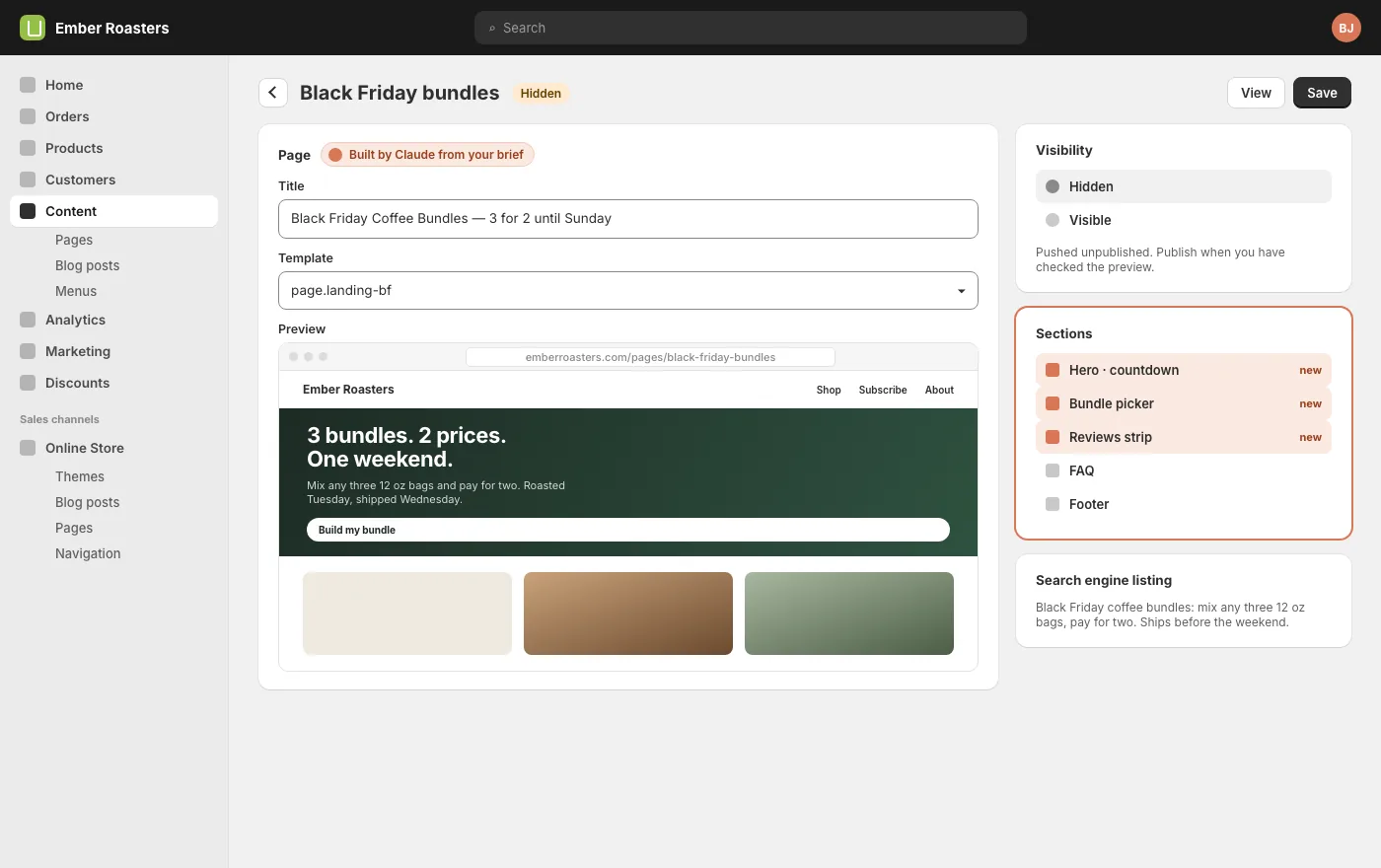
A landing page is a page with one job. Shopify makes them awkward because every page wants to be the whole theme. Claude builds the page from your brief in your theme’s own classes, pushes it unpublished so you can look at it first, and publishes it when you say so.
The page will only be as clear as the brief. Four lines are enough: who it is for, what the single offer is, what they should do, and when it ends. Add the three or four proof points you have (reviews, a number, a guarantee) and the products involved.
SayBrief for a landing page. Audience: existing newsletter subscribers. Offer: any three 12 oz bags for the price of two, Friday to Sunday. Action: build a bundle and check out. Proof: 4.8 stars from 1,200 reviews, roasted weekly, free shipping on three bags. Products: all single-origin coffees.
If you cannot write those four lines, the page is not ready to build, and no amount of design will fix that.
Page, template or section
Shopify gives you three ways to make a landing page, and choosing the right one before you build saves the rebuild. The editing guide covers the units in detail; the short version for landing pages:
One campaign
A page with its own template
A Shopify Page using a dedicated page template. Nothing else in the store changes. This is the default for a campaign.
Many campaigns
A reusable template
One landing template with sections you fill in per campaign. Build it once, create a page from it each time.
A product
A product template
If the landing page is really a long product page, make it an alternate product template and assign it to that product.
Claude will recommend one when it reads your brief. For a weekend offer it is almost always the first.
Build it in your theme
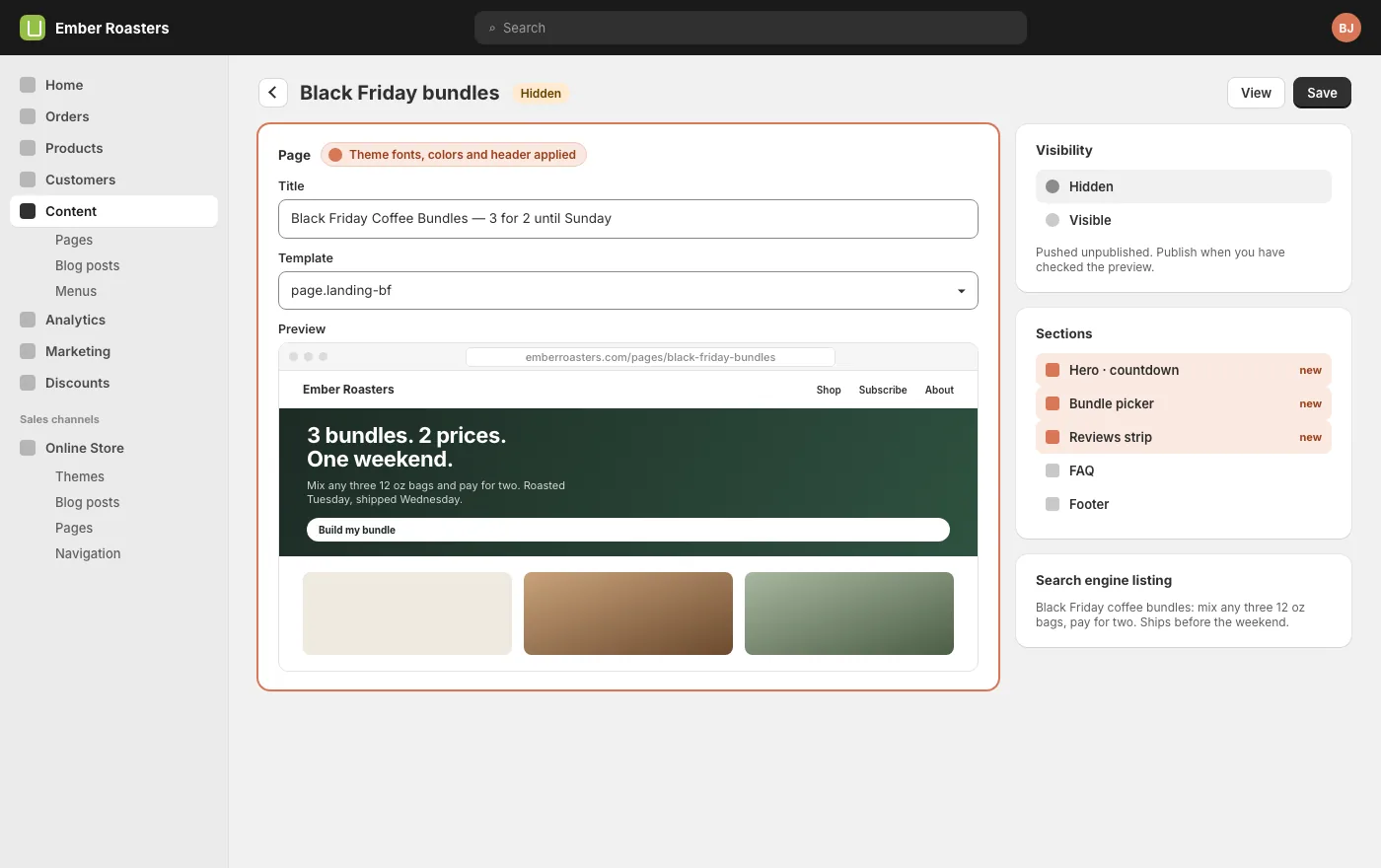
The connector can read your live theme, so Claude builds the page with your fonts, colors, button styles and spacing rather than inventing its own. Ask for the header and footer to stay, so the page feels like the store, and for the body to drop everything that is not about the offer.
SayBuild the page from the brief. Use our theme’s classes and settings so it matches the store. Keep the header and footer. Sections: hero with the offer and a countdown to Sunday midnight, a bundle picker listing the single-origin coffees, a reviews strip, a short FAQ. One call to action, repeated at the bottom.
Claude writes the template and its sections, and the page content. If you want to see it before it goes anywhere near the store, ask for a self-contained preview file first, open it in a browser, and iterate there.
SayBefore you push anything, give me the page as a single HTML file I can open locally, with the theme styles inlined.
Push unpublished and preview
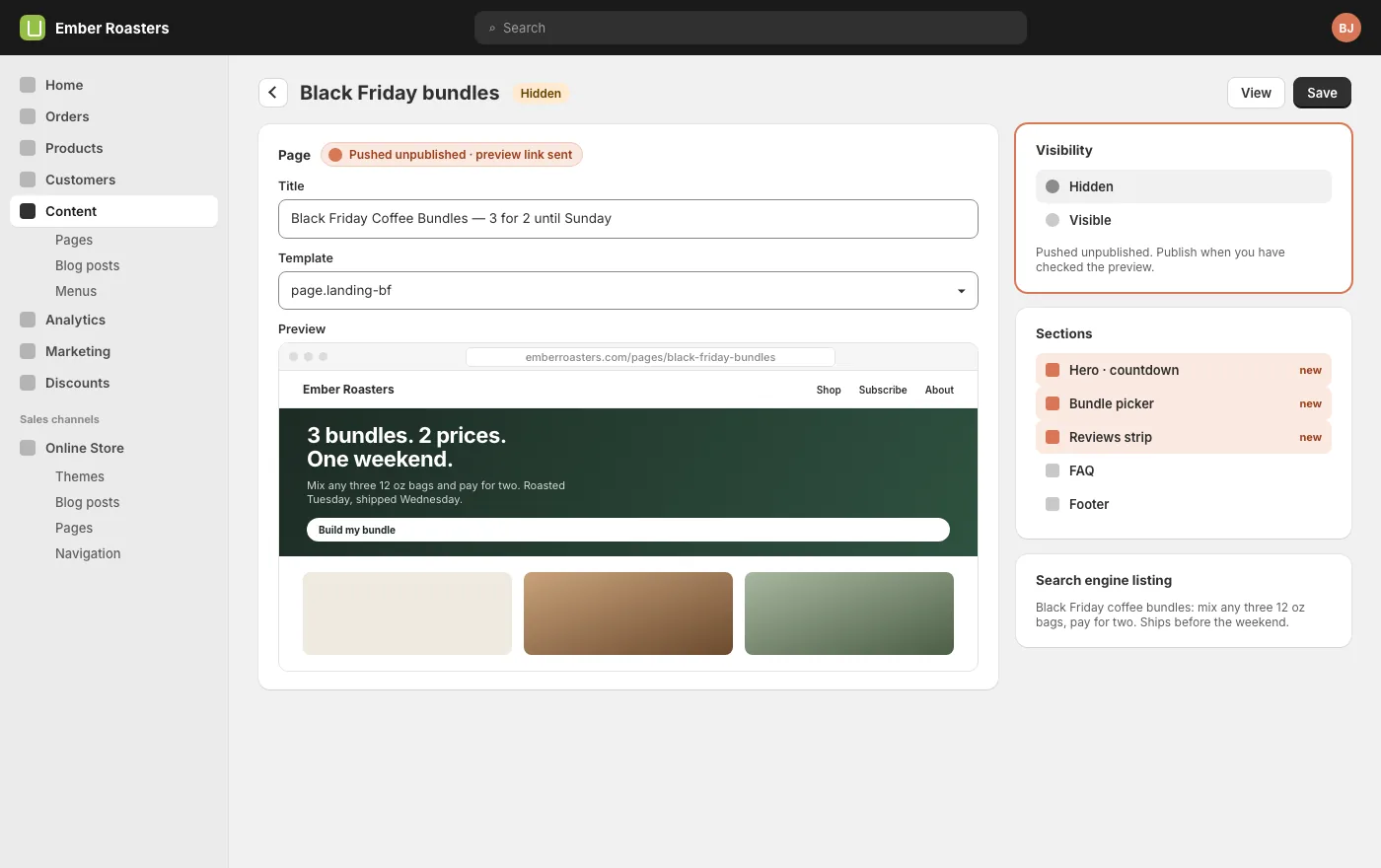
When it looks right locally, Claude pushes the template to the theme and creates the page in Shopify with visibility set to hidden. Hidden pages have a preview link that works for you and nobody else. Check it on your phone as well as your laptop; that is where most campaign traffic arrives.
SayPush it: add the template to the live theme and create the page unpublished. Send me the preview link.
Nothing customers see has changed yet. The template is in the theme but no page uses it publicly, and the page itself is hidden. You can leave it like that for a week.
Publish and link
Publishing is a visibility flag. Ask Claude to set it, or flip it yourself in the admin. Then put the link where the campaign lives: the newsletter, the ads, a banner on the home page for the weekend. Claude can add the banner and remove it on Monday if you tell it the dates.
SayPublish the page Friday at 6am. Add an announcement bar linking to it, and remove the bar Monday at 9am.
In Claude CMS the timed parts run as Swarm tasks. If you would rather press the buttons yourself, ask for the checklist instead.
Measure it
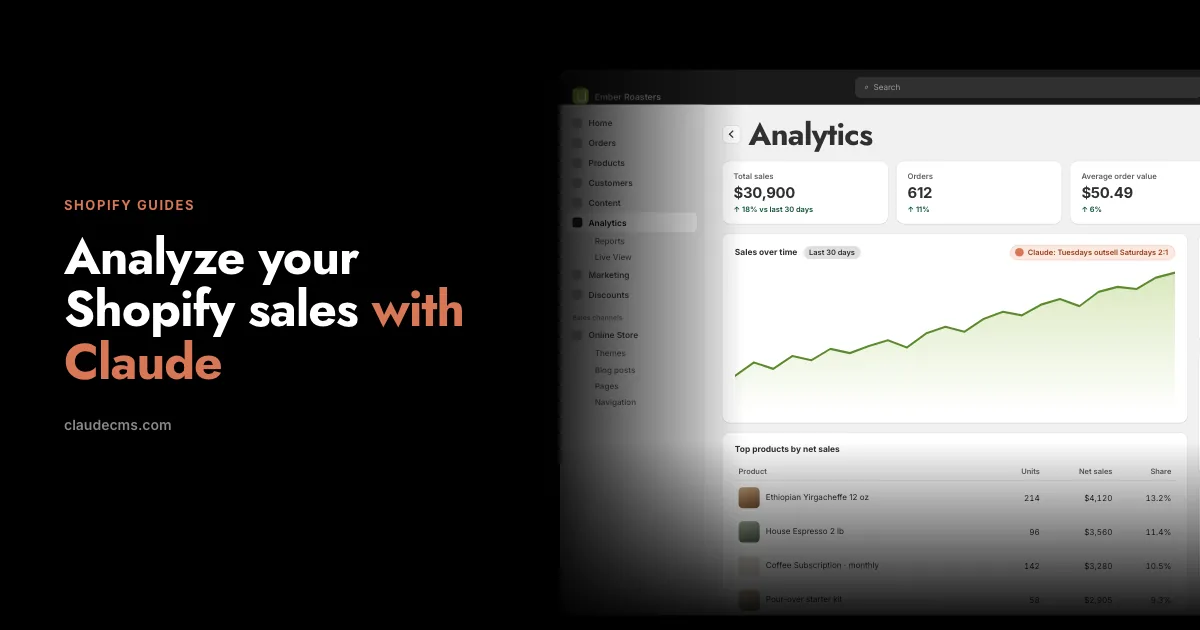
After the weekend, the same connector that built the page can tell you what it did: orders that contained the bundle, revenue, how it compared with the previous weekend. The sales guide covers the questions worth asking. One is enough to decide whether to run it again.
SayHow many orders between Friday and Sunday included the three-bag bundle, what did they bring in, and how does the weekend compare with the previous three?
Reuse the template
The second campaign is where the work pays back. The template exists; the next page is a new brief and a new page from the same template. Ask Claude to keep the template generic when it builds the first one, with the offer, dates and products as section settings, and every campaign after that is a conversation of a few minutes.
Questions
Will this change my live theme?
It adds a template and sections to the theme. Existing pages are not affected because nothing uses the new template until you assign it. If you would rather work in a theme copy, say so and Claude will push there instead.
Can Claude add the page to my main menu?
Menu changes need the navigation scope. With the standard scopes you add the menu item yourself under Online Store, Navigation, or widen the scopes once.
Does the countdown work in Shopify?
Yes, it is plain JavaScript in the section. No app is needed.
What if I do not like the result?
Iterate on the local preview before pushing. Once pushed, the page is hidden until you publish it, and the template can be removed from the theme in one request.
Start here
Every guide on this page assumes one thing: your store is connected. That is a one-time job of about fifteen minutes, covered step by step in Connect your Shopify store, or one click from the Connections tab if you already have a Claude CMS account. After that, this guide is a conversation.